
Blog

A Writer’s Website Can Build Credibility Before the Book Deal
A writer’s website builds credibility before the book deal. Build your writer website to intentionally to grow with your audience.

TL;DR:
- Many Canberra small businesses face the risk of website data loss due to unreliable backups and lack of testing.
- Implementing offsite, automated, and tested backup routines significantly reduces recovery time and protects customer trust.
Imagine it’s a Tuesday morning and your website has gone offline overnight. A customer calls to say they can’t find your contact page. You check your hosting dashboard and realise you’ve been hacked. In that moment, one question matters more than any other: do you have a reliable backup that actually works? For many small businesses in Canberra, the honest answer is uncertain. This article walks you through everything you need to know about website backups, from understanding the risks to setting up, testing, and securing a backup routine that you can genuinely trust.
| Point | Details |
|---|---|
| Prioritise regular backups | Daily website backups give Canberra businesses peace of mind and fast recovery after cyber incidents. |
| Test restores safely | Always test backups in a staging or local environment, never on your live website, to ensure your data can actually be restored. |
| Secure your backups | Protect your backup files and restrict public access to prevent security breaches or data theft. |
| Choose trusted solutions | Use reputable WordPress backup tools, check for vulnerabilities, and review restore quality before trusting them with your business data. |
Running a small business in Canberra means your website is often your most important sales and credibility tool. Losing it, even for a day, can cost you enquiries, bookings, and hard-won customer trust. The consequences of poor or absent backups are very real.
Consider what could go wrong without a solid backup in place:
Each of these scenarios can happen to businesses of any size. For a small Canberra firm without IT staff, recovery without a backup is often expensive, slow, and sometimes impossible.
The Australian Signals Directorate’s Annual Cyber Threat Report 2024–2025 makes clear that organisations should maintain regular backups that are tested for restoration, not simply created and forgotten. This guidance is especially relevant for small businesses, which are frequently targeted precisely because attackers expect weaker defences.
“A backup that has never been tested is not a backup. It is a false sense of security.”
Beyond the immediate disruption, there are legal and reputational considerations. If your site stores customer data and that data is lost or exposed, you may face obligations under the Australian Privacy Act. Lost customer records also erode trust in ways that are difficult to rebuild. Investing time in website security essentials and reliable backups is one of the most practical decisions a Canberra business owner can make.
With an understanding of the risks, it’s vital to look at the right preparation steps before actually configuring backups.
Not all backup solutions are created equal. Some create a “backup completed” notification without actually capturing everything your site needs to restore properly. Before you commit to a solution, it’s worth understanding what separates a reliable option from a risky one.
There are two main approaches to WordPress backups:
The best approach for most Canberra businesses is to use both. A daily plugin-based backup stored offsite gives you flexibility and control. Host-based backups provide a secondary safety net.
When evaluating any solution, consider these features carefully:
As plugin reliability research from backup-focused reviewers confirms, you should evaluate a backup solution on the quality and usability of its restore process, not just whether it reports a successful backup. A plugin that backs up cleanly but restores poorly is worse than useless in a crisis.
| Feature | Plugin-based backups | Host-based backups |
|---|---|---|
| Scheduling control | Full control | Limited by host |
| Offsite storage | Yes, configurable | Rarely included |
| Restore flexibility | High | Depends on host |
| Cost | Free to low-cost | Often included |
| Ease of use | Moderate | Very easy |
| Best for | Redundancy and control | Quick server-level recovery |
Pro Tip: Before installing any backup plugin, search its name alongside “vulnerability” or “CVE” in a search engine. This quick check reveals whether the plugin has had recent security issues that could put your backup files or site at risk.
Partnering good plugin selection with reliable website hosting is equally important. Your hosting environment affects how backups are stored and retrieved, so the two decisions work together.

After selecting a backup solution, it’s time to get hands-on: let’s walk through setting up a robust backup routine that truly protects your Canberra website.
Setting up a reliable backup routine does not need to be complicated. If you take it step by step, even a non-technical business owner in Canberra can have a working system in place within an hour.
Before you begin, confirm you have the following ready:
Here is a practical setup process to follow:
| Step | Key setting | Why it matters |
|---|---|---|
| Offsite storage | Separate cloud account | Protects backups if server fails |
| Backup frequency | Daily minimum | Limits data loss window |
| Retention period | 14 to 30 days | Allows recovery from delayed incidents |
| Incremental backups | Enabled where possible | Saves storage and time |
| First backup review | Manual check | Confirms setup is working correctly |
Reviewing affordable website service options that include managed backups can also save you significant time if the technical side feels overwhelming.
Pro Tip: Never test a restore on your live website. Even a well-executed restore can cause temporary downtime or content loss if something unexpected happens. Set up a staging environment or a local copy of your site specifically for restore testing.
As this guidance on restore testing makes clear, a backup solution should not be trusted until you have successfully completed a restore on a staging or cloned environment, not the live site.
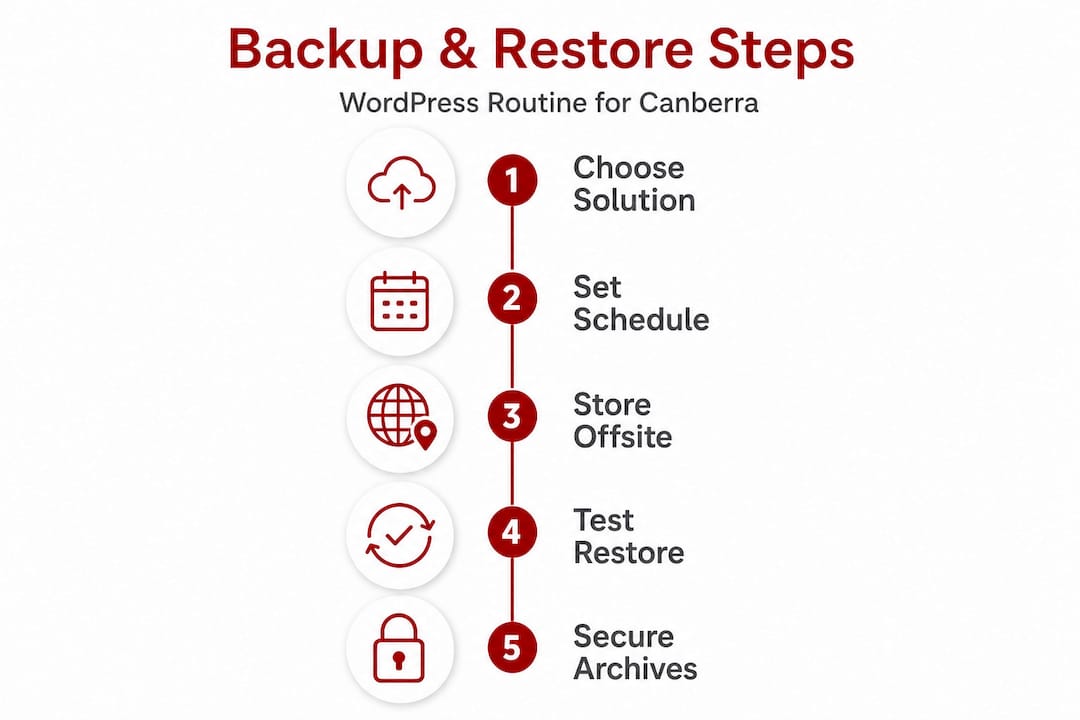
Setting up backups is essential, but it’s only truly useful if you can restore with confidence. So, how do you verify your backups really work?
Creating backups is the first step. Knowing they actually work is what gives you real peace of mind. Many Canberra business owners discover for the first time during a crisis that their backups were incomplete or corrupted. You want to know this in advance, not when you’re already under pressure.
Here is how to test a backup restore safely:
Signs your backup system is working correctly:
One critical and often overlooked risk is the security of the backup files themselves. A serious vulnerability identified in the BackupBliss plugin demonstrated that when backup archives are publicly accessible on a web server, attackers can download your complete website data including customer records, passwords, and sensitive configuration files. This is not a theoretical risk.
“Backup files stored in publicly accessible folders on your web server are an open invitation for attackers to take everything in one download.”
To protect your backup files:
Reviewing your guide to WordPress security alongside your backup setup ensures these two pillars of protection work together, rather than leaving gaps for attackers to exploit.
Pro Tip: Some backup plugins include automated restore-test scheduling or integrity verification. If yours does, enable it. Automated testing catches silent failures before they become emergencies.
You now know the full backup cycle, but what do experienced developers and agencies in Canberra wish more small businesses understood about backups?
Here is something that is uncomfortable but important to say plainly: the biggest backup mistake most Canberra small businesses make is not skipping backups entirely. It is assuming a backup that runs automatically is a backup that works.
We have seen this pattern repeatedly. A business sets up a backup plugin, receives green tick notifications for months, and then discovers during a real recovery situation that the backups were saving corrupted files, incomplete databases, or storing everything in a folder that was quietly filling up and then deleting older backups before the retention period expired.
The uncomfortable truth is that most backup failures trace back to two problems. First, the backup was never tested against a real restore scenario. Second, the storage or access controls were not properly verified after setup.
There is a tempting shortcut many business owners take: they look at Canberra business website examples and assume that professional-looking sites are automatically well-protected. Appearances tell you nothing about what is happening behind the scenes. A polished site with no reliable backup is one incident away from starting over from scratch.
The businesses that handle website incidents well share a few quiet habits. They test restores on a schedule, not just when something goes wrong. They keep backups offsite and encrypted. They review their backup logs monthly rather than assuming everything is fine. Small, steady habits like these create a strong defence over time.
Offsite and encrypted backups matter more than many people realise. If your hosting server is compromised, any backups stored on the same server may be compromised too. Encryption protects your backup data even if someone gains access to your cloud storage. These are not advanced measures reserved for large organisations. They are basic, practical steps that any Canberra business can implement with the right setup.
Prioritising this work now, before something goes wrong, is the most commercially sensible decision you can make for your online presence.
Getting your backup routine right takes time and some technical confidence. If you would rather have a trusted local team handle it for you, Asporea Digital is here to help.

We work with Canberra small businesses to set up, manage, and monitor WordPress backups as part of our ongoing WordPress maintenance plans. That means offsite backups, regular restore testing, security monitoring, and a local team you can actually reach when something needs attention. Our approach to securing WordPress sites covers both prevention and recovery, so your website is protected at every stage. If you are ready to take the uncertainty out of your backup setup, get in touch with us to discuss a care plan that fits your business.
Back up your website at least once a day, or more frequently if your site changes often, in line with Australian cybersecurity guidance on regular, tested backups from the Australian Signals Directorate.
Testing on your live site can cause unexpected downtime or data loss if something goes wrong during the restore process; always use a staging or cloned environment for safe verification.
Exposing backup archives in a publicly accessible folder on your web server, as demonstrated by the BackupBliss plugin vulnerability, allows attackers to download your complete site data including sensitive customer information.
Not all free plugins are reliable or actively maintained; always review recent security advisories and evaluate a plugin’s restore reliability before trusting it with your business data.
Contact your hosting provider immediately and reach out to your backup plugin’s support team so they can help diagnose whether the issue is with the backup file, the restore process, or your server environment before you attempt another restore.

A writer’s website builds credibility before the book deal. Build your writer website to intentionally to grow with your audience.

Choosing a web designer is easy to do quickly and expensive to undo. Here are 15 questions to compare proposals and get the best result.

Fix your newsletter signup fast. A 2 minute reader test that makes your promise clearer, builds trust, and helps your list grow.