Blog

How EOFY Can Drive More WooCommerce Sales
EOFY buying has its own psychology. Learn how small businesses can use WooCommerce to turn timing, confidence and clarity into sales.

Getting your WordPress site to work harder for your business is one thing. Knowing which customisation method to use, without blowing your budget or breaking your site, is another challenge entirely. Canberra small business owners are often caught between wanting a polished, high-performing website and keeping costs firmly in check. This article breaks down the most practical WordPress customisation options available right now, compares them side by side, and gives you clear, scenario-based advice so you can make a confident decision for your business.
| Point | Details |
|---|---|
| Assess business needs | Evaluate your goals, budget, and existing website technology before choosing a customisation method. |
| Lightweight methods work best | Custom CSS and child themes offer affordable, maintainable changes that keep your website fast. |
| Pair methods for better impact | Combining Site Editor or Customizer with custom CSS can give you unique branding and speed. |
| Performance matters | Monitor site speed after every change to ensure you don’t lose clients due to long load times. |
| Affordable expert help is available | Canberra small businesses can access specialist help for customisation without breaking the bank. |
Before you touch a single setting, it pays to know what you’re actually evaluating. Not every customisation method suits every business, and picking the wrong one can cost you time, money, and site performance.
Here are the key criteria to weigh up:
Site speed is not just a technical concern. It directly affects how many leads your site generates. GeneratePress loads in 0.8s at 45KB, outperforming heavier themes like Astra and OceanWP. For small business sites, aim for a Largest Contentful Paint (LCP) under 2.5 seconds and a Time to First Byte (TTFB) under 200ms. These numbers matter because slow sites lose visitors before they even read your offer.
Long-term maintainability is just as important. A customisation that looks great today but breaks every time WordPress updates is a liability. Check out these design tips for Canberra SMBs and the WordPress design guide Canberra businesses can use to build smarter from the start.
Pro Tip: Choose a lightweight theme like GeneratePress or Neve as your base. These themes are built for speed and pair well with almost every customisation method covered below.
Once you know your criteria, let’s explore the first hands-on customisation method: the Site Editor, also known as Full Site Editing (FSE).
The Site Editor is WordPress’s built-in visual tool for block-based themes. It lets you redesign your entire site, from the header and footer to individual page templates, without writing a single line of code. WordPress customisation methods include the Site Editor for block themes, making it one of the most accessible options available today.
Here’s what the Site Editor does well:
The trade-off is compatibility. The Site Editor only works with block themes, which became mainstream from 2022 onwards. If your site runs on an older classic theme, you’ll need a different approach. For businesses currently building a WordPress website from scratch, choosing a block theme from the start gives you the most flexibility going forward.
Pro Tip: Use the Site Editor to handle a full rebrand without developer costs. Update your logo, colour palette, and typography site-wide in one session.
For established sites not using block themes, the Customizer offers a practical alternative.
The WordPress Customizer gives you a live preview panel where you can adjust colours, upload a new logo, rearrange menus, and tweak widget areas on classic themes. WordPress customisation methods include the Customizer for classic themes, and it remains one of the most cost-effective tools for businesses that don’t want to overhaul their entire site.
Key advantages of the Customizer:
The Customizer is best suited to businesses with an existing WordPress site that just needs a refresh. Think updated brand colours after a logo redesign, or a new menu structure after adding a service. It won’t give you full layout control, but for targeted tweaks it’s hard to beat. Pairing Customizer changes with a few lines of custom CSS (covered below) can extend your results significantly. Good support for WordPress sites also ensures these changes stay intact over time.
Pro Tip: Before making Customizer changes, take a screenshot of your current site. It’s a simple reference point if you want to compare before and after.
When design tweaks aren’t enough, child themes provide Canberra businesses with advanced, update-proof options.
A child theme is essentially a copy of your main (parent) theme that holds only your custom changes. When WordPress updates the parent theme, your modifications stay safe inside the child theme. Think of it like editing a photocopy rather than the original document.
Here’s how a Canberra service business might use a child theme to add a testimonials widget:
sidebar.php)“Child themes prevent update overwrites. Always use staging sites and backups before applying changes to a live site.”
This approach keeps your WordPress development process Canberra businesses rely on clean and maintainable. It’s the recommended method whenever you need to modify theme files directly.
For businesses looking for big impact on a budget, CSS customisation stands out as a smart and affordable solution.
Custom CSS (Cascading Style Sheets) lets you change the visual appearance of your site without touching theme files. You can update button colours, adjust font sizes, add spacing, or change hover effects with just a few lines of code. The best part? It adds almost no weight to your site.
Here’s a real-world example. A Canberra bookkeeper using a free theme like Neve wants their “Book a consultation” button to stand out more. A simple CSS rule changes the button background to a bold brand colour and increases the font size. That one change can meaningfully lift click-through rates.
CSS customisation works best when you:
For Canberra small businesses, prioritising lightweight methods like custom CSS on free themes delivers strong results for affordability and performance. Pair this with the website design tips that work specifically for local audiences to get the most from your changes.
Stat callout: Even small visual improvements to call-to-action buttons, like colour contrast and size, can increase conversion rates by up to 35% according to UX research. That’s a significant return for a few lines of CSS.
When you need the most flexibility, like campaign landing pages, drag-and-drop builders are an option, though not without trade-offs.
Page builders like Elementor and Beaver Builder let you create custom layouts visually, without coding. They’re popular because they make complex designs accessible to non-developers. Page builders like Elementor provide drag-and-drop layouts but add overhead, making them less suitable for high-traffic sites where speed is critical.
When page builders make sense:
The risk is performance. Page builders load additional scripts and stylesheets that can slow your site considerably if overused. Reserve them for specific pages rather than building your entire site with them.
Pro Tip: If you use Elementor, install a caching plugin like WP Rocket and limit third-party add-ons. Check your site speed optimisation tips after any major builder changes to make sure your load times stay competitive.
Having explored the main tools, a summary comparison helps you pinpoint the right fit for your specific Canberra business scenario.
| Method | Ease of use | Cost | Speed impact | Update safe |
|---|---|---|---|---|
| Site Editor (FSE) | Easy | Free | Minimal | Yes |
| Customizer | Easy | Free | Minimal | Yes |
| Child themes | Moderate | Low | None | Yes |
| Custom CSS | Moderate | Free | None | Yes |
| Page builders | Easy | Free/Paid | Moderate to high | Varies |
For most Canberra small businesses, the smartest approach is to combine methods for best results. For example, use the Site Editor for layout and structure, then add custom CSS for fine-grained style control. Always test your site’s performance before and after any changes using a free tool like Google PageSpeed Insights.
For more advanced needs, affordable plugin customisation can extend your site’s functionality well beyond what themes alone can offer.
Still wondering which route is best for your business needs? Here are situational recommendations tailored for Canberra small businesses.
For a full walkthrough of what’s involved in building or rebuilding your site, the Canberra business website guide covers the process from start to finish.
If you’d like your customisation handled without the trial and error, here’s how to take the next step with confidence.
At Asporea Digital, we work with Canberra small businesses at every stage, whether you need a quick style update, a new plugin integrated, or a full custom build. We understand that budget matters, and we offer fixed-price solutions so there are no surprises.
Our Canberra WordPress development process is designed to be transparent and practical, with a focus on performance and results. If you’re looking for specific functionality, our affordable WordPress plugin solutions can extend your site without the overhead of a full rebuild. Ready to get started? Book a custom WordPress session and let’s work out the best approach for your business together.
Using a child theme is the safest approach because your changes are stored separately and won’t be lost during updates. Always back up your site before making any modifications.
Page builders add overhead that can reduce site speed, so use caching plugins and limit third-party add-ons to keep performance in check.
Yes. Combining methods like Site Editor with CSS gives you the best balance of flexibility and performance for most small business sites.
Custom CSS is very lightweight and has minimal impact on speed, making it one of the most efficient customisation options available.
Always work inside a child theme and test changes on a staging site before going live to keep your modifications safe through every update.

EOFY buying has its own psychology. Learn how small businesses can use WooCommerce to turn timing, confidence and clarity into sales.
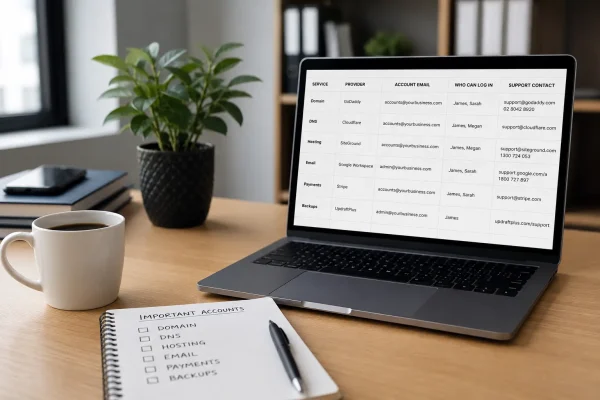
Stop scrambling when something breaks. Know who owns domain, DNS, hosting, email and payments, and keep access and support details in one place.

Stop leaking visitors to social media. Make your website hold attention, build confidence, and guide people to enquire, book, or buy.