Blog

How to Start a Newsletter That People Want to Read
A newsletter keeps you in touch with interested visitors. Stay useful, stay remembered, and bring people back to your website when they’re ready.

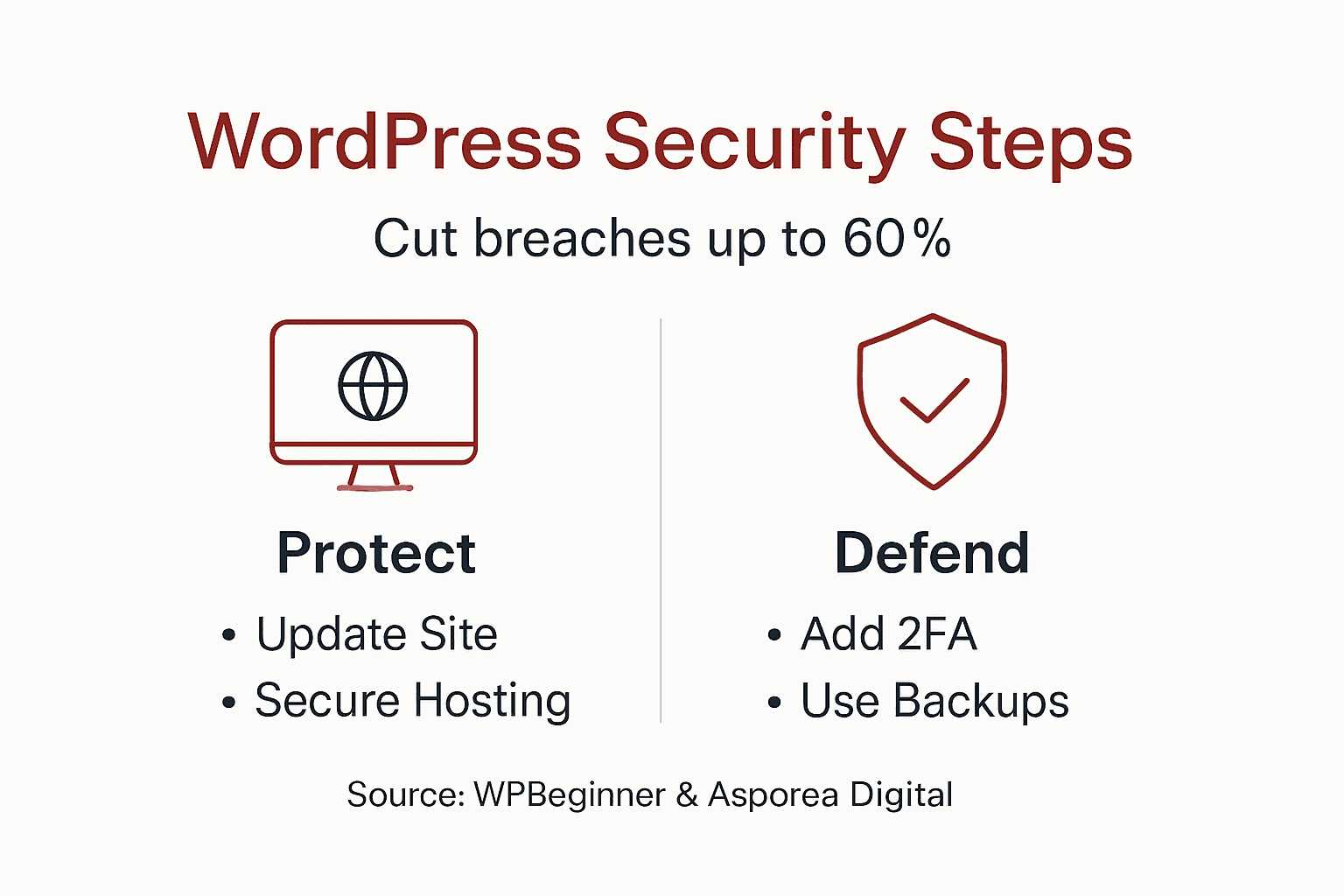
Most WordPress breaches happen because small businesses overlook simple security steps. Weak passwords, outdated plugins, and missing backups leave your site vulnerable to attacks that can destroy customer trust and revenue overnight. This guide walks you through seven affordable security measures that protect your Canberra business from the threats that cause 60% of WordPress security incidents.
| Point | Details |
|---|---|
| Updates prevent 70% of attacks | Keeping WordPress core, themes, and plugins current closes common exploit pathways immediately. |
| 2FA blocks 99.9% of login attacks | Two-factor authentication stops automated credential stuffing and brute force attempts. |
| Secure hosting cuts breach risk 30% | SSL certificates and firewalls bundled with local hosting providers strengthen your foundation. |
| Backups reduce downtime 80% | Automated offsite backups let you restore quickly when security incidents occur. |
| Regular audits maintain protection | Ongoing monitoring detects suspicious activity within hours, improving response times 70%. |
Before diving into security measures, gather the essentials that make implementation smooth and effective.
You need full administrator access to your WordPress dashboard. Without proper permissions, you cannot install plugins, modify settings, or implement critical security changes. If you share admin duties, coordinate with your team to avoid conflicts during the security setup process.
A backup solution must be ready before you make any security changes. Updates and new plugin installations can occasionally cause conflicts that break site functionality. Having a recent backup means you can roll back quickly if something goes wrong, preventing extended downtime that costs you customers.
Familiarize yourself with basic WordPress dashboard navigation and plugin management. You should know how to access Settings, Plugins, and Users sections. If these areas feel unfamiliar, spend 20 minutes exploring the dashboard before proceeding. Most security steps involve straightforward point and click actions, but confidence with the interface prevents costly mistakes.
Keep your hosting provider credentials accessible. Some security improvements require you to contact support or access your hosting control panel. If your current host lacks essential security features like SSL certificates or firewall protection, you may need to upgrade your plan or migrate to a more security focused provider.
Essential preparation checklist:
Outdated software creates the easiest entry point for attackers targeting small business websites. WPBeginner research shows that 70% of common WordPress attacks exploit outdated versions, with 30% of successful hacks linked directly to outdated plugins.
WordPress releases security patches regularly to fix newly discovered vulnerabilities. When you delay updates, hackers have time to study these published vulnerabilities and develop automated tools that scan thousands of websites looking for unpatched installations. Your site becomes low hanging fruit for attackers who prefer easy targets over well maintained sites.
Update process in priority order:
Automatic updates keep your site protected between manual checks. WordPress supports automatic updates for minor security releases by default. You can extend this to major releases and plugins through settings or managed services, though some businesses prefer manual control over major updates to avoid compatibility surprises.
Pro Tip: Set a recurring calendar reminder every Monday morning to check for updates. This five minute habit prevents the security gaps that develop when updates pile up for months. If you manage multiple sites, managed WordPress update services handle this maintenance automatically.
Incompatible updates occasionally break site functionality. This happens most often with poorly coded plugins or heavily customized themes. Before updating, check plugin reviews and support forums for reports of problems with the latest version. If you discover an incompatibility after updating, restore your backup and contact the plugin developer for guidance.
Delaying updates because you fear breaking your site creates more risk than the occasional compatibility issue. The importance of WordPress updates cannot be overstated when weighed against the certainty of exploitation if you remain vulnerable.
Your hosting provider forms the foundation of WordPress security. Cheap shared hosting without security features leaves your site exposed even when you follow every other security practice correctly.
SSL certificates encrypt data between your visitors and your server, protecting sensitive information like passwords and payment details. Sites with HTTPS earn higher search rankings and convert visitors 30% more effectively because customers trust the padlock icon in their browser. Most quality hosts include free SSL certificates through Let’s Encrypt.
Managed WordPress hosting packages bundle essential security tools at affordable prices. Look for hosts that include:
Local Canberra hosting offers advantages beyond basic security features. Regional hosting providers understand Australian privacy regulations and can offer face to face support when you need urgent help. They also maintain servers within Australia, keeping your data under local jurisdiction and reducing latency for Canberra visitors.
Pro Tip: Before committing to a hosting provider, test their support response time with a pre-sales question. Quality hosts respond within hours, not days. This responsiveness proves critical when you need emergency security assistance.
When evaluating Canberra WordPress hosting options, prioritize providers who specialize in small business needs rather than budget hosts serving thousands of unrelated sites on shared servers. Dedicated WordPress hosts optimize server configurations for security and performance, blocking attacks at the server level before they consume your site resources.
If you already use hosting without adequate security features, migration sounds daunting but typically completes within hours with professional help. Most security focused hosts offer free migration services, handling the technical details while you maintain access to your current site until the switch completes. Understanding WordPress hosting helps you make informed decisions about when migration makes financial sense.
Passwords alone cannot protect your WordPress admin area from modern attack methods. Automated bots attempt millions of username and password combinations per day, eventually guessing weak credentials through brute force.
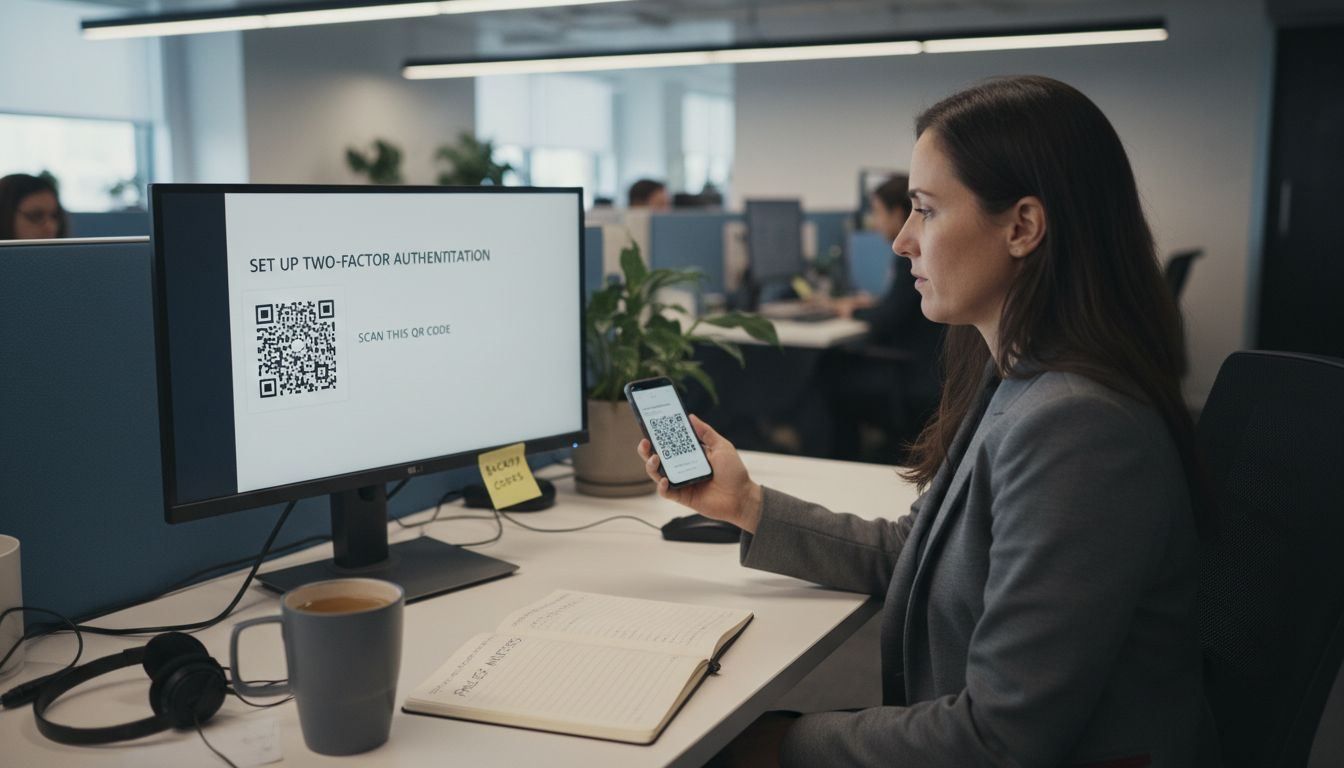
Two-factor authentication requires a second verification step beyond your password. Even if attackers steal or guess your password, they cannot access your dashboard without the temporary code from your phone. Research shows that 2FA blocks up to 99.9% of automated login attacks, reducing credential stuffing risks by over 50%.
How 2FA works:
Setup steps for popular free 2FA plugins:
Backup codes provide access if you lose your phone or cannot receive codes. Store these codes in a password manager or secure physical location, never in an unencrypted file on your computer. Without backup codes, losing phone access can lock you out of your own website.
Common implementation challenges include resistance from team members who view 2FA as inconvenient. Explain that 30 extra seconds per login prevents hours of recovery work after a breach. Start by requiring 2FA only for administrator accounts, then expand to all user roles once your team adapts to the workflow.
Implementing two-factor authentication takes 10 minutes per user but provides protection that passwords alone cannot match.
WordPress security plugins act as virtual security guards, monitoring your site 24/7 for suspicious activity and blocking attacks in real time.
Essential security plugin features:
Free plugins like Wordfence and Sucuri Security Free provide solid baseline protection suitable for most small business sites. Premium versions add real time threat intelligence, priority support, and hands off malware removal. Studies show that Wordfence and Sucuri reduce infection rates by 40 to 60% when properly configured.
| Feature | Free Plugins | Premium Plugins |
|---|---|---|
| Firewall Protection | Basic rules, delayed updates | Real time threat feeds, country blocking |
| Malware Scanning | Daily scans, manual cleanup | Hourly scans, automatic removal |
| Support Response | Community forums | Priority tickets, phone support |
| Annual Cost | $0 | $100 to $300 |
| Best For | Simple sites, tight budgets | E-commerce, membership sites |
Pro Tip: Start with free versions to learn security plugin interfaces before paying for premium features you might not need. After three months, evaluate whether your site requires premium capabilities based on actual threats you encounter.
Configuration steps for maximum protection:
Security plugins consume server resources during scans and when filtering traffic. If you notice site slowdowns, adjust scan schedules or upgrade hosting to handle the additional processing load. The performance trade off proves worthwhile compared to the cost of recovering from a successful attack.
Avoid installing multiple security plugins that duplicate features. Running three different firewall plugins creates conflicts and actually weakens protection while consuming excessive resources. Choose one comprehensive solution and configure it thoroughly rather than layering incomplete protections. WordPress security plugin configuration tips help optimize settings for small business needs.
For plugin recommendations, leading WordPress security resources provide current comparisons based on active threat landscapes.
Perfect security does not exist. When prevention fails, reliable backups determine whether you lose hours or weeks of business during recovery.
Offsite backups stored separately from your website protect against server failures, hosting provider issues, and catastrophic attacks that corrupt local backup files. Keeping backups offsite reduces downtime by over 80% because you can restore quickly regardless of what happens to your primary hosting environment.
Backup frequency should match your content update schedule:
Automated backup plugins handle scheduling without requiring you to remember manual backups. Popular options include UpdraftPlus, BackupBuddy, and VaultPress. Configure these plugins to store copies in cloud storage like Dropbox, Google Drive, or Amazon S3 for geographic separation from your website files.
Test restoration regularly to confirm backups work correctly. Schedule quarterly restoration tests using a staging site rather than your live website. This verification catches backup corruption or configuration errors before you urgently need restoration capabilities. A backup you cannot restore provides false confidence.
Managed hosting providers often include automated backups in their packages, eliminating the need for separate backup plugins. Confirm your host stores backups offsite and offers self-service restoration. Some hosts charge restoration fees or require support tickets, adding delays during critical recovery moments.
Regular WordPress backups form your safety net when security measures fail or human error causes data loss.
Even with security tools installed, common oversights leave WordPress sites vulnerable to preventable attacks.
Weak passwords and default usernames cause nearly 60% of successful breaches. The username “admin” appears in every automated attack script. Create unique administrator usernames during WordPress installation or delete the default admin account after creating a new administrator with a different name. Passwords should contain 16 characters mixing uppercase, lowercase, numbers, and symbols. Password managers generate and store these complex passwords, removing the temptation to reuse simple passwords across multiple sites.
Misconfigured user roles contribute to over 40% of attacks that escalate from compromised low privilege accounts. WordPress includes several role levels from Subscriber to Administrator, each with specific permissions. Never grant Administrator access to users who only need Editor or Author capabilities. Regularly audit user accounts and delete inactive users, especially former employees or contractors who no longer require access.
Common security configuration errors:
Pro Tip: Security plugins fix many hardening oversights automatically, but review their hardening settings to understand which protections they apply. Manual hardening through wp-config.php file edits offers deeper control for advanced users.
Rutine security audits identify problems before attackers exploit them. Monthly reviews should check for unauthorized user accounts, unfamiliar plugins, unexpected file changes, and unusual traffic patterns. Many security plugins include activity logs that make these audits quick and systematic.
Security improvements deliver measurable protection within days of implementation, but sustained security requires continuous attention.
Realistic security outcomes:
Monitoring tools enable detection of suspicious activity within hours rather than weeks. Security plugins send alerts when they block attack patterns, detect file changes, or identify malware signatures. Configure alerts to notify you of critical events without overwhelming you with routine blocked login attempts.
Security is not a one time project but an ongoing practice. Quarterly security reviews should assess:
Response time improvements of up to 70% come from monitoring dashboards that centralize security metrics. You spot trends like increased login attempts from specific countries or repeated targeting of particular URLs, allowing proactive defensive adjustments.
Regular audits minimize breach risks over time by catching small security gaps before they compound into major vulnerabilities. The small businesses that avoid security disasters are those that treat security as an ongoing operational requirement rather than a set and forget installation.
Implementing these security measures protects your business, but maintaining security while growing your online presence takes time away from running your business.

Asporea Digital delivers fixed-price WordPress packages designed specifically for Canberra small businesses. Our local team handles security implementation, ongoing monitoring, and update management so you focus on customers instead of technical maintenance. From secure hosting to expert plugin configuration, we provide the affordable support that keeps your site protected without the premium agency prices.
Whether you need a professional WordPress website design in Canberra built securely from the start or want to optimize your current site with WordPress plugins that enhance performance, our team offers practical solutions matched to your budget. Schedule a free strategy call to discuss expert hosting consultation and security planning for your business.
Free security plugins provide essential protection like firewalls and malware scanning with delayed threat updates. Premium versions add real time threat intelligence, automatic malware removal, and priority support, making them worthwhile for e-commerce or membership sites handling sensitive customer data.
Backup frequency depends on how often your content changes. E-commerce sites should backup daily before each business day, blogs need weekly backups when publishing regularly, and static business sites can backup monthly plus immediately before any updates.
Setup takes about 10 minutes per user and requires only installing a free plugin plus a smartphone authenticator app. Daily use adds just 30 seconds to login time, a minimal inconvenience compared to hours of breach recovery work.
Grant the minimum permissions each person needs. Content writers need Author or Editor roles, not Administrator access. Reserve Administrator access only for yourself and technical staff who handle plugins and security settings.
Warning signs include unexpected traffic spikes, new admin accounts you did not create, unfamiliar files in your WordPress directories, blacklist warnings from Google, emails you did not send, and slow performance from hidden cryptocurrency mining scripts. Security plugin scans detect most compromises within 24 hours.
DIY security works for simple sites when you commit to weekly monitoring and immediate updates. Hire professionals for e-commerce sites, complex membership platforms, or when security management distracts you from core business activities. Professional management costs less than recovering from a single breach.
A newsletter keeps you in touch with interested visitors. Stay useful, stay remembered, and bring people back to your website when they’re ready.
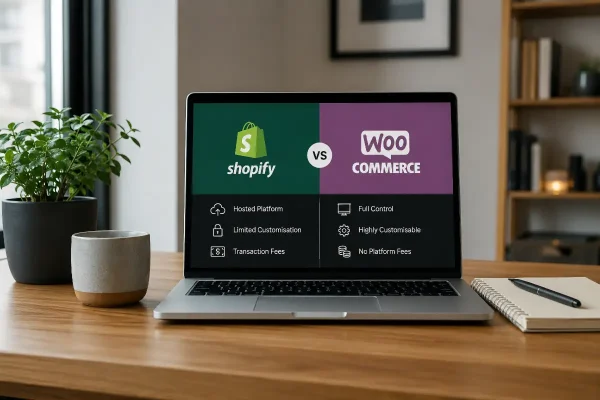
Compare Shopify and WooCommerce to see where WordPress gives your store more control, flexibility and room to grow.

Startup advice from other startups can sound useful, but experience is what helps shape a clearer, stronger business early.