
Blog

When Substack Starts Competing With Your Membership Site
Using Substack with a membership site? Learn the risks, smarter alternatives, and how to keep your website at the centre.

TL;DR:
- A slow or broken WordPress website can damage a small business’s reputation, leading to lost inquiries and sales. Proper preparation, backups, and local managed support are essential for diagnosing and fixing common issues efficiently, ensuring long-term site health. Tailored, local expertise helps Canberra businesses maintain reliable websites that build trust and sustain growth in their community.
A broken or slow WordPress website does not just frustrate visitors. It sends them straight to your competitor. For Canberra small businesses, where local reputation and online credibility go hand in hand, a site that fails to load, displays scrambled layouts, or throws up error messages can quietly cost you enquiries, bookings, and sales every single day. The good news is that most WordPress problems are fixable without expensive overhauls or extended downtime. This guide walks you through practical, affordable steps to diagnose, fix, and prevent the most common issues affecting small business websites in Canberra and the surrounding region.
| Point | Details |
|---|---|
| Preparation avoids pitfalls | Having backups and the right access makes WordPress fixes safer and faster. |
| Most problems are fixable | Common WordPress issues can be resolved with structured steps and reliable advice. |
| Prevent problems with routine care | Regular updates and professional support reduce future website downtime. |
| Local approach matters | Canberra businesses see better results with WordPress care tailored to their specific needs. |
Before you touch a single setting, take a moment to prepare properly. Rushing into fixes without the right foundation is one of the most common reasons a small problem turns into a large one.
The essentials you need at hand:
Your backup is the single most important item on that list. If something goes wrong during a fix, a clean backup is the only reliable way to restore your site quickly. Without it, you are relying on memory and guesswork.
WordPress maintenance tips become much simpler when you start with a solid backup routine. Use a reliable backup plugin such as UpdraftPlus or BackupBuddy, and confirm that your backups are stored somewhere separate from your hosting account, such as Google Drive or Dropbox.
Comparison: self-managed vs managed hosting
| Feature | Self-managed hosting | Managed WordPress hosting |
|---|---|---|
| Backup frequency | Manual or plugin-dependent | Automatic and regular |
| Security patches | Your responsibility | Applied by the host |
| Performance tuning | DIY | Included |
| Support response | Ticket-based, often slow | Priority support |
| Fix frequency | Higher | Lower |
As a rule, WordPress sites benefit from managed hosting and regular maintenance. Businesses on managed hosting spend significantly less time dealing with technical problems compared to those on basic shared hosting plans. That is time you can put back into running your business.
Protecting your site before and during any repair work also means reviewing your WordPress site security settings. A compromised site can reintroduce problems immediately after you fix them, so it pays to confirm your login security, file permissions, and user roles are all in order before proceeding.
Pro Tip: Before making any changes, create a full snapshot backup and label it with the date. Store it somewhere you can access independently of your hosting account. This one habit can save hours of recovery time.
With your preparation complete, you are ready to tackle the most common issues. Work through these in order of urgency, starting with anything that takes your site completely offline.
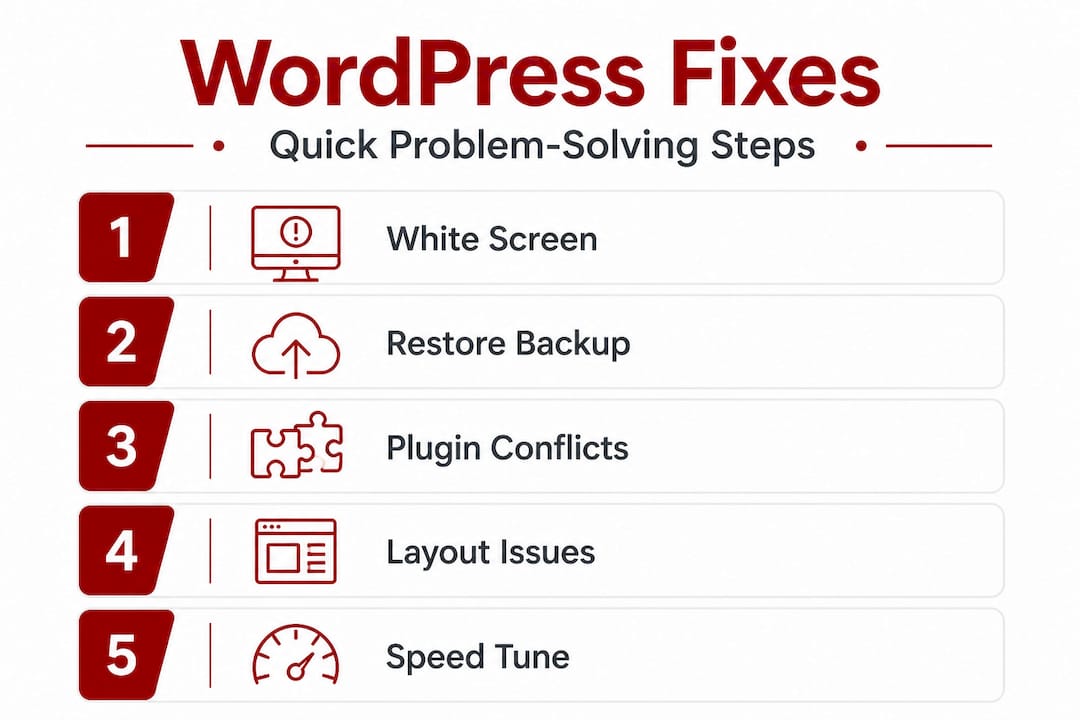
1. Fixing the white screen of death
The white screen of death is one of the most alarming WordPress errors. Your site simply goes blank. No error message, no content. Start by deactivating all plugins via FTP by renaming the plugins folder to "plugins_old`. If the site returns, rename the folder back and reactivate plugins one by one to find the culprit. If the issue persists, switch to a default WordPress theme such as Twenty Twenty-Four to rule out a theme conflict.
2. Restoring from a backup
If your site is severely broken or has been compromised, restoring from your most recent clean backup is often the fastest path forward. Use your backup plugin’s restore feature, or manually upload files via FTP and import the database through phpMyAdmin. Always restore to a staging environment first if you can, to confirm the backup is clean before going live.
3. Repairing plugin and theme conflicts
Plugin conflicts are behind a significant number of WordPress errors. The method is straightforward: deactivate all plugins, confirm the issue disappears, then reactivate them one at a time. Take note of which plugin triggers the problem. Check whether an update is available, consult the plugin’s support forum, or find a well-supported alternative. Theme conflicts follow the same diagnostic process.
4. Correcting display and layout issues
Broken layouts are often caused by a cached version of your site, a recent plugin update that altered CSS, or a theme conflict. Start by clearing your site cache through your caching plugin or hosting dashboard. If the layout issue persists, use your browser’s developer tools to identify which CSS rule is causing the problem. If you have recently updated a plugin or theme, consider reverting to the previous version temporarily.
5. Improving load speed (basic steps)
Slow load times directly affect how many enquiries your site generates. Compress images using a tool like ShortPixel or Smush, enable caching with a plugin such as WP Rocket or W3 Total Cache, and confirm your hosting plan is appropriate for your site’s traffic. Remove unused plugins, as each one adds load time even when inactive.
Summary of common fixes
| Problem | Effort level | Estimated time |
|---|---|---|
| White screen of death | Medium | 30 to 60 minutes |
| Plugin conflict | Low | 15 to 30 minutes |
| Theme conflict | Low | 15 to 30 minutes |
| Slow page load | Medium | 45 to 90 minutes |
| Full site restore from backup | Medium | 30 to 60 minutes |
| Layout or display issue | Low to medium | 20 to 45 minutes |
Getting WordPress site support early in the process can save you hours. Many Canberra business owners underestimate how much time DIY fixes consume when they are also managing staff, customers, and operations at the same time.
It is worth knowing that optimised WordPress with managed services rivals Shopify or Wix for small business performance, often at lower cost. That means you do not need to abandon WordPress or shift platforms to get a fast, reliable site. You simply need the right setup and consistent care.
Pro Tip: Keep a dedicated browser tab open with your WordPress error log during any troubleshooting session. Go to wp-content/debug.log after enabling WP_DEBUG in your wp-config.php file. It often pinpoints the exact file and line causing the problem.
If you decide fixing your current site is not worth the effort and a fresh start makes more sense, you can build or refresh your WordPress site with a clear brief and fixed-price scope to avoid ongoing surprises.
Effective troubleshooting is about being methodical, not just fast. Small, steady habits create a strong defence against recurring issues.
Start with one variable at a time. If you change multiple things simultaneously, you will not know which change fixed the problem or which one caused a new one. Pause, change one thing, test, then move to the next step.
Use a staging environment. A staging site is a private copy of your live site where you can test changes safely. Most quality hosting providers offer staging tools. Testing plugin updates or theme changes on staging before applying them to your live site is one of the simplest ways to avoid unexpected downtime.
Common mistakes that make things worse:
“A troubleshooting log does not need to be sophisticated. A simple text file with dates, changes made, and outcomes observed is enough to spot patterns and prevent repeated mistakes.”
Maintaining a troubleshooting log is a small habit with outsized returns. When a problem reappears three months later, your notes from the previous incident can reduce your fix time dramatically.
Some advocate static migration as a solution to WordPress complexity, but for most small businesses a dynamic, well-maintained WordPress site is the far more practical option. Static sites cannot handle forms, bookings, memberships, or WooCommerce stores without significant workarounds. For most Canberra businesses, the answer is better maintenance, not a platform change.
Reviewing your WordPress website security guide is also part of smart troubleshooting. Security vulnerabilities often disguise themselves as performance issues, broken pages, or unexpected redirects.
Once the immediate problems are resolved, the focus shifts to prevention. Most WordPress website failures are not random. They are the predictable result of deferred maintenance.
Build these habits into your monthly routine:
Managed services and regular support prevent 60% of WordPress failures. That figure is worth sitting with. The majority of WordPress problems businesses experience are entirely preventable with consistent, routine care.
Knowing when to engage professional help is also part of long-term health. If you are spending more than an hour a month on WordPress issues, or if problems keep returning despite your fixes, that is a signal to bring in support rather than continuing to absorb the time cost yourself.
Securing your WordPress site sits alongside performance maintenance as an ongoing commitment, not a once-off task. Brute force attacks, malware injections, and outdated plugin vulnerabilities are ongoing risks that require active management.
Pro Tip: Set a recurring calendar reminder on the first Monday of each month labelled “WordPress health check.” Dedicate 20 to 30 minutes to updates, backups, and a quick performance check. This simple routine is one of the highest-value investments you can make in your site’s stability.
Investing in managed updates for WordPress through a trusted provider takes this responsibility off your plate entirely, freeing you to focus on the parts of your business that only you can do.
Here is an honest observation that most generic WordPress guides overlook. The advice designed for a global audience does not always translate cleanly to a Canberra small business context.
Canberra’s digital market has its own characteristics. It is a smaller, relationship-driven economy where local credibility matters enormously. A slow or broken website does not just lose you a transaction. It damages trust that may take months to rebuild in a community where word of mouth still carries significant weight.
Generic troubleshooting articles point you toward universal fixes and sometimes recommend abandoning WordPress altogether in favour of static sites or simpler platforms. That recommendation rarely serves a dynamic Canberra business well. If your site needs booking integrations, a WooCommerce store, a members-only section, or even a contact form that routes to different staff, a static site simply cannot deliver those features reliably.
The real answer for most Canberra operators is not to simplify their platform. It is to manage it properly. Optimised WordPress with managed services rivals Shopify or Wix for performance, often at lower cost, while giving you the flexibility those platforms cannot match.
There is also a practical argument for working with someone local. A Canberra-based WordPress partner understands your operating context, your customers, and the local competitive landscape. They can advise on local SEO improvements, flag relevant security risks, and respond quickly when something goes wrong, without you needing to explain your business from scratch to an offshore support team.
The most effective approach combines hands-on technical management with local market awareness. That is a different proposition from simply following a generic tutorial or outsourcing your site to the cheapest provider available. Explore how WordPress and local marketing work together to turn a well-maintained site into a steady source of new enquiries.
Small, steady habits create a strong defence. But the right partner makes those habits easier to sustain.
If your WordPress website has been causing problems, or if you simply want to stop worrying about updates, backups, and security patches, there is a straightforward path forward.

Asporea Digital works with Canberra small businesses to resolve WordPress issues quickly, maintain sites to a professional standard, and build the kind of online presence that earns trust and generates enquiries. Whether you need a one-off fix, a full site review, or ongoing website support options that cover updates, backups, and security, we offer clear pricing and direct, local support. For businesses looking to grow further, our advanced WordPress digital marketing services connect your website to a broader strategy for visibility and leads. Explore premium WordPress support or get in touch for a straightforward conversation about what your site needs.
Neglected maintenance is the top source of WordPress failures, as outdated plugins and skipped updates create both security vulnerabilities and compatibility conflicts. A consistent monthly update and backup routine prevents the majority of these problems.
Yes, many basic WordPress errors such as plugin conflicts, cache issues, and minor layout problems are fixable with methodical troubleshooting and the guidance in this article. More complex issues involving custom code, database corruption, or active security breaches generally benefit from professional help.
Regular updates should be applied at least once a month to maintain both performance and security. Always create a verified backup before running updates and test on a staging environment where possible.
It is worth getting expert support when problems recur despite your fixes, your site handles sensitive customer data, or resolving the issue requires code changes. Ongoing or serious WordPress issues are best managed with professional, managed support rather than repeated DIY attempts.

Using Substack with a membership site? Learn the risks, smarter alternatives, and how to keep your website at the centre.
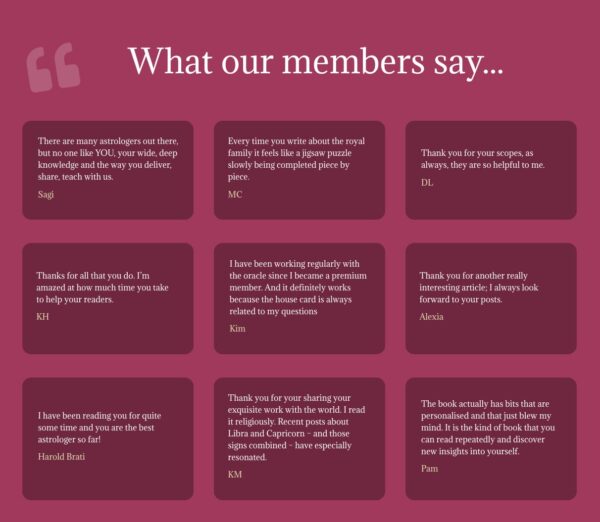
Long-term online success depends on visible trust. See how an established astrology membership site improved conversions by showing real proof and credibility with help from

Startup advice from other startups can sound useful, but experience is what helps shape a clearer, stronger business early.