
Blog

Stop Guessing: The Three Metrics Your Website Should Tell You Every Week
Track search metrics like visitors, landing pages and enquiries weekly so you can see what’s working and what to fix next.

TL;DR:
- A comprehensive website security checklist helps small to mid-sized businesses protect customer data and maintain trust by addressing key layers like SSL, software updates, and malware scans. Consistent maintenance, such as regular audits, strong authentication, and addressing OWASP vulnerabilities, reduces risk and secures integrations against evolving threats. Building an incident response plan ensures quick recovery, emphasizing that security is an ongoing discipline, not a one-time setup.
A website security checklist is a structured set of steps designed to protect your site from cyber threats, safeguard customer data, and maintain the trust your business depends on. For small to mid-sized businesses, this is not optional. 80% of consumers avoid websites that appear unsecured, which means a single visible gap in your security can cost you enquiries before a visitor even reads your homepage. The good news is that a clear, layered approach covering SSL/TLS, two-factor authentication, malware scanning, and security headers puts you well ahead of most threats. This guide walks you through each step, in plain language, so you can act with confidence.
SSL/TLS is the encryption protocol that puts the padlock in your browser bar and the “https” in your URL. Without it, browsers like Chrome and Firefox display active warnings to visitors, and website security becomes almost impossible to establish in the eyes of your audience. Most hosting providers now offer free SSL certificates through Let’s Encrypt, but the critical step many businesses miss is setting up auto-renewal. A lapsed certificate is just as damaging as having none at all.

Check that your certificate covers all subdomains, not just your primary domain. If you run a booking subdomain or a staging environment, those need coverage too.
Outdated software is the most common entry point for attackers. On WordPress sites, this means your core installation, every active plugin, and every theme, including ones you are not currently using. Developers release patches specifically to close known vulnerabilities, so delaying updates is the equivalent of leaving a window open after being told a break-in occurred nearby.
Set WordPress to apply minor core updates automatically. For major updates and plugin changes, review the changelog first, then apply in a staging environment before pushing live. This small habit prevents the majority of injection and access control breaches that appear in the OWASP Top 10 each year.
Pro Tip: Delete plugins and themes you no longer use. Inactive code still runs, still gets scanned by bots, and still carries risk if it contains a vulnerability.
Weak passwords remain one of the simplest attack vectors available to automated bots. Every user account on your website, from administrators down to editors, should use a unique password of at least 16 characters. Password managers like Bitwarden or 1Password make this practical without requiring anyone to memorise anything.
Two-factor authentication (2FA) adds a second layer that stops credential theft in its tracks. Even if a password is compromised, an attacker cannot log in without the second factor. Plugins like WP 2FA or Google Authenticator integrate directly with WordPress and take under 10 minutes to configure. This single step significantly reduces your exposure to brute force and credential stuffing attacks.
Brute force attacks work by trying thousands of password combinations in rapid succession. Limiting the number of failed login attempts before locking an account removes this attack vector almost entirely. Plugins like Limit Login Attempts Reloaded or the security suite Wordfence handle this automatically and log every blocked attempt for your review.
You should also consider moving your WordPress login URL away from the default "/wp-admin` path. This does not replace proper authentication controls, but it reduces the volume of automated probing your site receives. Combined with IP allowlisting for admin access where practical, these measures make your login area a much harder target.
Security headers are HTTP response headers that instruct browsers on how to handle your site’s content. They are invisible to visitors but provide meaningful protection against cross-site scripting (XSS), clickjacking, and data injection. The headers every business site should have active include HTTP Strict Transport Security (HSTS), Content Security Policy (CSP), X-Frame-Options, and X-Content-Type-Options.
You can verify your current headers using the free tool at securityheaders.com, which grades your configuration and explains each missing header. Most can be added through your .htaccess file or via a WordPress security plugin like Solid Security or Wordfence. Getting these right is a one-time configuration task that pays ongoing dividends.
Malware on a business website often sits undetected for weeks. It can redirect visitors, harvest form data, or quietly enlist your server in spam campaigns, all without any obvious sign on your end. Full security checklist reviews should happen monthly, but automated malware scans should run weekly or daily to catch infections early.
Wordfence, Sucuri, and MalCare each offer automated scanning with email alerts. File integrity monitoring compares your current site files against a known clean baseline and flags any unauthorised changes. This is particularly useful for detecting backdoors that attackers install after an initial breach.
Pro Tip: After any malware removal, change all passwords, revoke active sessions, and review your user accounts for any additions you did not make yourself.
A backup is only useful if it actually works when you need it. Many businesses discover their backup was incomplete or corrupted at the worst possible moment. Your backup routine should cover your full database and all site files, stored in a location separate from your hosting server, such as Amazon S3, Google Drive, or a dedicated backup service like UpdraftPlus or BlogVault.
Security is a continuous cycle that requires testing, not just running. Restore a backup to a staging environment at least once per quarter to confirm the process works end to end. This is the part of the website maintenance checklist most businesses skip, and it is the part that matters most when something goes wrong.
The OWASP Top 10 for 2026 identifies Broken Access Control, Cryptographic Failures, and Injection attacks as the three highest-priority threats for web applications. Understanding what these mean in practice helps you prioritise your checklist.
Threat modelling, which means thinking through how an attacker might target your specific site, helps you apply these fixes where they matter most rather than treating every site as identical.
AI-powered attacks are no longer theoretical. Automated bots now mimic human browsing behaviour convincingly, making them harder to detect with traditional rate limiting. AI-driven threats require preparing for sophisticated bot attacks and securing every integration point your site uses.
Businesses that connect their websites to third-party tools, booking systems, payment gateways, or CRM platforms are expanding their attack surface with each integration. Every API connection is a potential entry point if it is not properly authenticated and monitored.
Securing these points means using API keys with the minimum required permissions, rotating credentials regularly, and monitoring for anomalous traffic patterns. Tools like Cloudflare Bot Management and Sucuri’s WAF can help identify and block AI-generated traffic. A layered defence combining firewalls, vulnerability scans, and monitoring deters most automated attackers, even sophisticated ones. For more on protecting your integrations, the guide on website integration security covers this in practical detail.
Security breaches often originate from legacy components like unused staging sites, abandoned subdomains, or plugins left accessible long after they served their purpose. These forgotten assets do not get updated, do not get monitored, and do not get removed. They simply wait.
Conduct a full audit of every subdomain, staging environment, and third-party script running on your site at least twice per year. Remove or password-protect anything that is not actively needed. Check your DNS records for subdomains pointing to services you no longer use, as these can be hijacked through a technique called subdomain takeover. This is a quiet but serious risk that a structured website maintenance workflow catches before it becomes a problem.
Knowing what to do when something goes wrong is as important as preventing it in the first place. An incident response plan does not need to be complex. It needs to answer three questions: who is responsible for responding, what steps do they take, and who gets notified. For most small businesses, this means one person with clear authority, a checklist of immediate actions (isolate, assess, restore, communicate), and a list of contacts including your hosting provider and any affected customers.
Automated scanning is essential but manual audits of server logs and incident response plans are critical to catching what automation misses. Review your server logs monthly and after any significant site change. Patterns in failed login attempts, unusual file modifications, or unexpected traffic spikes are often the first signs of a breach in progress.
A website security checklist works because small, steady habits applied consistently create a defence that automated attacks struggle to penetrate.
| Point | Details |
|---|---|
| SSL/TLS is non-negotiable | Set up auto-renewal and confirm coverage across all subdomains and staging environments. |
| Automate the routine, audit the rest | Run malware scans daily or weekly, but review logs and conduct manual audits monthly. |
| OWASP guides your priorities | Focus hardening efforts on Broken Access Control, Cryptographic Failures, and Injection risks first. |
| Legacy assets carry hidden risk | Audit and remove unused plugins, subdomains, and staging sites at least twice per year. |
| Incident response readiness matters | A simple, documented response plan reduces damage and recovery time when a breach occurs. |
Working with small businesses across Canberra, I have seen the same pattern repeat itself. A business owner does the right things at launch, sets up SSL, installs a security plugin, and then treats it as done. Six months later, a plugin has not been updated, a staging site is still publicly accessible, and the backup has not been tested since the site went live.
The uncomfortable truth is that security is not a setup task. It is a maintenance discipline. The businesses that get into trouble are rarely those who ignored security entirely. They are the ones who did it once and assumed it would hold.
I have also seen over-reliance on automation create a false sense of safety. Wordfence and Sucuri are excellent tools, but automated tools can miss logic-based attacks. A plugin that creates an unintended admin account, a misconfigured permission that exposes a file, these are things a scanner will not always catch. Manual log reviews, even a quick 10-minute scan once a month, catch things that automated reports miss entirely.
My honest recommendation is to treat your website security checklist the way you treat your business insurance. You review it, you update it when circumstances change, and you do not wait for something to go wrong before you take it seriously. The cost of prevention is a fraction of the cost of recovery, and the reputational damage from a breach is harder to repair than the technical one.
— James
If working through this checklist feels like a lot to manage alongside running your business, you are not alone. Most small business owners in Canberra do not have a dedicated IT team. That is exactly why Asporea Digital builds websites with security built in from the start, not bolted on afterwards.

Asporea Digital’s WordPress care plans cover updates, malware scanning, backups, and performance monitoring so you are not carrying that responsibility alone. Whether you need a secure WordPress site from the ground up or ongoing support for an existing one, the team handles the technical side so you can focus on your business. Explore how WordPress supports digital marketing growth for Canberra businesses and see what a properly maintained site can do for your enquiries and visibility.
A website security checklist is a structured list of technical and procedural steps used to protect a website from cyber threats, data breaches, and unauthorised access. It typically covers SSL/TLS, software updates, authentication, malware scanning, and incident response planning.
Perform a full checklist review at least monthly, with automated scans running daily or weekly. Conduct an immediate review after any major plugin change, site migration, or security incident.
The OWASP Top 10 for 2026 identifies Broken Access Control, Cryptographic Failures, and Injection attacks as the highest-priority risks. These are best addressed through regular updates, strong authentication, and proper input validation.
Yes. Hosting-level security and a site-level plugin like Wordfence or Sucuri address different layers of risk. Relying on one without the other leaves gaps that a layered defence approach is specifically designed to close.
Security directly affects conversions. Consumers actively avoid websites that appear unsecured, and visible trust signals like HTTPS and a clean security record improve both credibility and enquiry rates.
Track search metrics like visitors, landing pages and enquiries weekly so you can see what’s working and what to fix next.
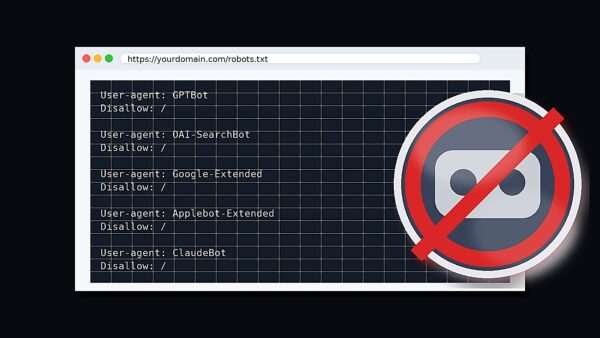
Over the last year, the biggest AI players have rolled out new crawlers for training and search. Get a plugin that helps you to opt

Turn your reflections into clear, practical goals for 2026 with a simple framework and an easy worksheet.