
Blog

What You Get When You Pay for a Professional Website Build
Know exactly what’s included in a professional website build, what costs extra, and how to avoid surprise fees, and vague promises.

Google Analytics is useful, but it is not what it’d call user-friendly.
Looking at it from a business owner perspective, most business owners I know aren’t looking for ‘insights’. As a business owner I want straight answer to a few questions that help me run my website without guessing. The trick is uncovering where those numbers live in Analytics (GA4), and making sure your tracking is connected properly.
Let’s start by getting Google Site Kit setup on your WordPress site. That will show you exactly where to find the set of GA4 metrics that make sense for your business.

If you already have Site Kit installed and connected, you’re already half way there. You can skip to the next section.
Site Kit is Google’s official WordPress plugin that connects your website to Google Analytics and Search Console. It exists to make and hold the connection stable between your website and Google, without you needing to do any complicated techy things.
To install and connect it:
From your WordPress Dashboard, go to Plugins → Add New
Search for “Site Kit by Google”
Click Install, then Activate
Click Start Setup and sign in with the Google account you use for the business
Follow the prompts and approve the permissions
When asked, connect Google Analytics and Search Console
If you manage more than one website in that Google account, Site Kit will prompt you to select the correct site. If the site is not set up yet, it will guide you through creating what is missing.
Making sure you’re looking at the right GA4 ‘property’ can save you hours of confusion later.
In your WordPress Dashboard:
Go to Site Kit → Settings
Open Connected Services
Click Analytics
Confirm the account and property match the correct website
If the numbers look strange later, nine times out of ten it is because you are looking at the wrong property, or tracking is connected twice.
When you open Analytics it can be a bit overwhelming.
You do not need twenty reports, you need a small subset of metrics from GA4 that will answer the key questions about how your site is performing.
Here are the four questions, and where to find each answer inside GA4.
In GA4, go to Reports → Acquisition → Traffic acquisition.
This report shows where visits are coming from. You are not trying to become a traffic expert. You are simply looking for whether people are arriving through channels that make sense.
If you have been working on SEO, keep an eye on Organic Search. That is the traffic Google sends to your site from search results. If it starts to rise over time, it is a sign your pages are becoming easier to find.
In GA4, go to Reports → Engagement → Pages and screens.
This tells you which pages get attention. It is one of the simplest ways to see what your website is actually doing in the real world, not what you hope it is doing.
If your homepage is near the top, fine. If a service page is near the top, also fine. If a blog post is near the top, pay attention, because it may be acting like the front door to your business.
This report helps you decide where to focus your effort, because it shows which pages strangers are actually seeing.
In a bricks and mortar store, you want to be in a location where you get foot traffic, so you can move them from browsing to selecting a product.
It’s similar in website terms, you want website visitors, not just to admire your site, but to take an intended action. For some businesses that will be making an enquiry or a booking. For ecommerce store it is adding a product to a cart and proceeding to checkout. For content led sites it might be a subscription.
In GA4, go to Reports → Engagement → Events.
This is where you can see what actions are being tracked. Some actions are tracked automatically. Others only appear once your tracking is configured properly.
If you already have key actions set up as conversions, you can view them here:
Reports → Engagement → Conversions
If Conversions is empty, that does not mean nothing is happening. It usually means GA4 has not been told what counts as success yet.
The first step is simply knowing where Events live, so you can see what is being captured before you decide what you want to measure.
In GA4, go to Reports → Acquisition → User acquisition.
This helps you understand whether your website is reaching new people, or supporting people who are returning while they decide.
Returning visitors are not a problem. In many service businesses it is normal for people to visit more than once before they enquire. This report gives you a quick read on whether your website is attracting fresh attention, or mostly serving existing awareness.
Once you know where the reports are, weekly tracking becomes less distracted.
Traffic acquisition: shows you whether Organic Search is trending upward
Pages and screens: explains your top pages for the week
Events or Conversions: details whether people are taking action
User acquisition: reveals the split between new and returning visitors
Tracking these four metrics is like keeping one eye on the numbers so you can spot changes early, and tell whether your improvements are working.
When GA4 looks odd, it is rarely because you are doing something wrong. It is usually setup.
Common causes can be you are viewing the wrong property, tracking is not installed, tracking is installed twice, a consent banner is blocking tracking until accepted, or your own visits are inflating results.
All of that is fixable.
The important thing is not to assume the data is “truth” until you know the wiring is correct.
If you have Site Kit connected but you still cannot see the numbers you need, send us a note with what you are trying to measure. We can tell you the cleanest setup for your kind of site, without making it complicated.

Know exactly what’s included in a professional website build, what costs extra, and how to avoid surprise fees, and vague promises.
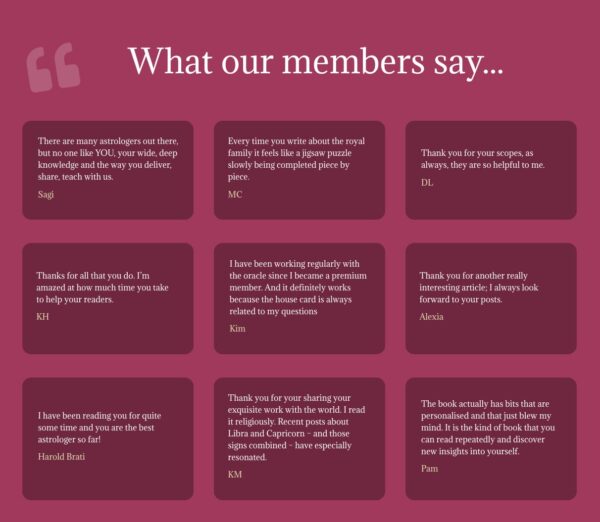
Long-term online success depends on visible trust. See how an established astrology membership site improved conversions by showing real proof and credibility with help from

Reduce contact form spam without annoying real customers. Add simple form protections, improve email delivery, and use hosting filters to quarantine junk.